创建项目
初级
本页介绍如何从模板或示例创建新项目:
- 模板 — 仅包含开始制作游戏所需基本元素的项目。
- 示例 — 完整的游戏项目,可供学习或作为新游戏的基础。
使用 Game Studio 创建新项目
创建新项目的步骤:
在 Stride 启动器中,点击 Start 启动 Game Studio。
新建/打开项目对话框将会打开。
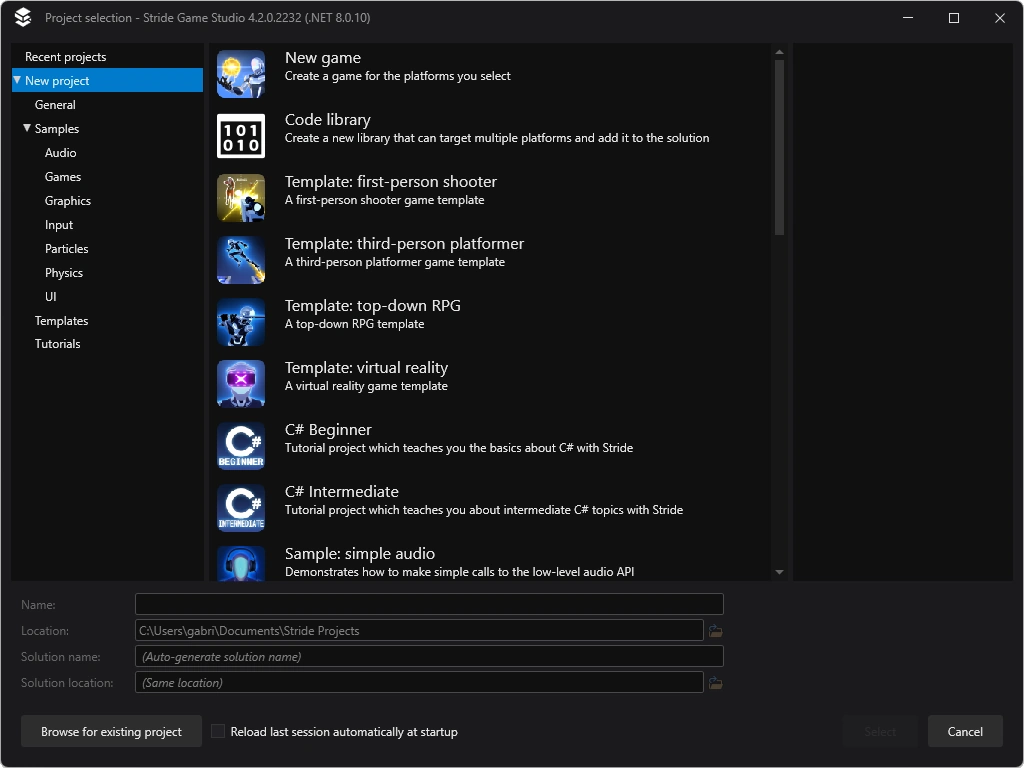
也可以在 Game Studio 中通过 File > New 打开此对话框。
选择项目模板或示例。空白模板可在 General > New Game 中找到。
在 Name 和 Location 字段中,指定项目的名称和保存位置。
点击 Select。
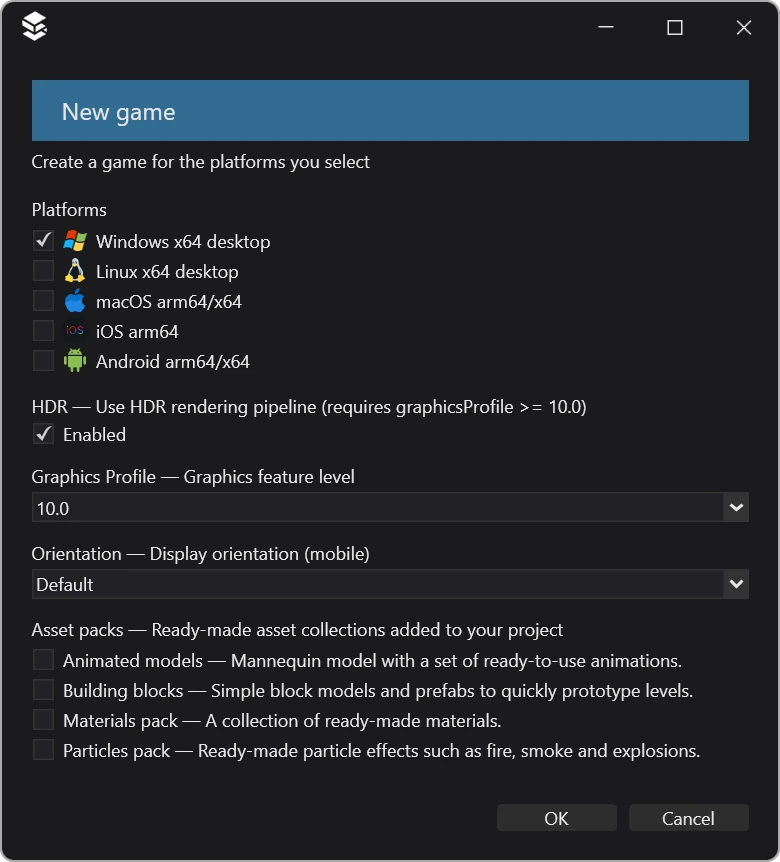
创建新游戏对话框将会打开。
Note
可用选项列表可能因所选模板或示例而异。
在 Namespace 字段中,指定您要使用的命名空间。如果不确定命名空间,保持默认值即可。
在 Platforms 下,选择游戏要支持的平台。
Note
要支持 iOS 和 Android,需要安装 Xamarin(如有 Visual Studio 则免费)。如果开发系统缺少所选任何平台的前置要求,Stride 会显示警告。
在 Asset Packs 下,可以选择要包含在项目中的额外资产,例如动画和材质。在学习 Stride 时,资产包非常有趣,但并非必需。
在 Rendering 下,选择所需的选项。
Graphics Profile(图形配置文件): 项目中可用的图形功能取决于所选的配置文件。如需高级图形功能,请选择最新版本的图形配置文件。
Warning
某些显卡不支持最新的图形配置文件。对于某些移动设备,仅 Level 9.3 和 Level 10.0 可用。
High or Low Dynamic Range(HDR / LDR,高动态范围/低动态范围): 此选项定义项目中颜色的计算方式。LDR 模式下,颜色范围为 0 到 1;HDR 模式下,颜色可以取任意浮点值。HDR 提供更高级、更真实的渲染效果,但需要更多处理能力,且要求配置文件为 Level 10.0 或更高。
在 Orientation 下,选择项目的方向。PC 游戏请使用横屏;竖屏通常仅用于移动游戏。
点击 OK。
Stride 将创建项目并在 Game Studio 中打开。更多信息请参阅 Game Studio。
使用 Stride CLI 创建项目
Stride CLI 工具提供了一种无需图形界面即可创建新项目的方式。
开始之前,请确保已安装 Stride CLI。安装说明请参阅 Stride CLI 页面。
找到要使用的模板。默认项目模板名为
stride-game。要列出所有 Stride 模板,请使用以下命令:stride new list空白模板名为 game。
创建项目。
stride new TemplateNameHere -n ProjectNameHere在 Game Studio 中打开项目。
stride studio ./ProjectNameHere
模板参数
All Stride templates can take additional parameters to change how they are created. Here's a list of the most commonly used ones:
| Parameter | Values | Description |
|---|---|---|
-n |
text | Name of the project. |
--platform |
host (the current os), window, linux, macos, android, ios |
Platform(s) the project should target, separated by the | character. |
--HDR |
true, false |
Determines if the project uses HDR (required graphics profile >= 10.0). |
--graphics-profile |
9.0, 10.0, 11.0, ... |
The graphics profile to use. This can be changed later. |
--orientation |
Default, LandscapeLeft, LandscapeRight, Portrait |
The game's orientation on mobile devices. This can be changed later. |
For a list of all available parameters in a template, use the --help flag.
Example command:
stride new game -n ProjectX --HDR true --platform windows`|linux
资产包
Stride 提供了额外的资产包,帮助您更轻松地开始游戏制作。项目创建后的任何时间,都可以通过 CLI 添加这些资产包。
进入项目的主 项目包 目录(以
.Game结尾的目录)。cd ./NameOfGame/NameOfGame.Game找到要使用的资产包。要列出所有资产包,请使用以下命令并查看
Stride.Templates.AssetPacks下的条目。stride new list使用以下命令将资产包添加到项目中:
stride new AssetPackIdHere
此时您应该能看到 Assets 和 Resources 文件夹中出现了新文件。
使用 dotnet 模板创建项目
另一种无需 Stride CLI 即可从命令行创建项目的方式是使用 dotnet 模板。
开始之前,请确保已安装模板包。有关每个包包含的内容,请阅读其 nuget.org 页面 上的 README。
# 安装空白 stride-game 模板
dotnet new install Stride.Templates.Games
# 安装其他模板
dotnet new install Stride.Templates.Games.Starters
# 安装示例(完整游戏)
dotnet new install Stride.Templates.Samples
# 安装资产包
dotnet new install Stride.Templates.AssetPacks
找到要使用的模板。默认项目模板名为
stride-game。要列出所有 Stride 模板,请使用以下命令:dotnet new list stride创建项目。
dotnet new TemplateNameHere -n ProjectNameHere手动打开 Game Studio。
Warning
由于体积较大,大多数示例和模板仅在次版本和主版本更新时才更新。这意味着您需要手动升级它们以确保使用最新版本。通过启动器打开项目时会自动处理此问题。